
Modern work spaces (and home offices) have come leaps and bounds when it comes to printing and network functionality is a key reason. Once upon a time users were limited by the reach of their power cord when it came to connecting their device to a printer. Nowadays, printing can be done without a physical connection, offsite and with total ease. We’re here to explain what network printing is, how you can share your device and what the advantages of doing so are. Stay tuned for the low-down on modern network printing and how it can improve your overall experience.
Network printers
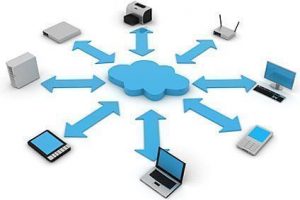
Network printers are machines that are connected to a network so that multiple users can operate them. These high powered printers differ from traditional models in that they don’t require a hard connection point to each computer, which makes the printing process easier across the board. They will either have an ethernet port or built in Wi-Fi connectivity.
How do you add these printers to a network?
Start by updating the printer’s settings to join the local network. For ethernet connections, manually plug the printer into the respective router. For wireless options, find the wireless router and join the network.
How do I add a network printer using Windows?
Use the File and Printer Sharing for Microsoft Networks option to use a printer connected to one PC with others within the network. Note, the host computer must be running and physically connected to the printer so that other devices can access it.
- Allow sharing of the computer by selecting Turn on file and printer sharing within the Network and Sharing Centre of Control Panel.
- Share the machine by choosing the Devices and Printers or Printers and Scanners option on the Start menu. Select the Printer properties after right clicking on the relevant computer, and check the Share this printer box with the Sharing tab.
How do I add a network printer using a Mac?
Look for the Print Centre option if using an older version of Mac and connect your device by following the outlined prompts. For newer versions, you can expect automatic detection that adds devices and allows for manual configuration.
Keep in mind that other options also exist when it comes to sharing a printer on a network. You can use wireless print servers, bluetooth printers and also print from the cloud.
Tips to keep in mind
- Be sure to set your network to Private to add extra sharing features. This is because operating systems provide more sharing options to private networks, when compared to public ones.
- Having a network password adds an extra layer of protection. Users will be required to input a password each time they access the network.
- You can bypass a complicated configuration process if your printer has a wireless card installed.
Ink & toner for your network printing needs
Regardless of what setup you use for network printing, be sure to stock your machine with the best quality ink and toner for your needs. At Toner City, we offer great service and advice across an impressive range of brands. Order online or chat to us on 1300 330 242 about how we can supply ink and toner for your printing jobs.