
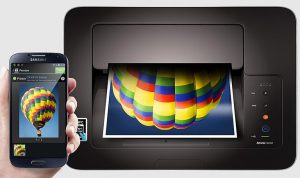
Whether you’re giving a presentation, need to sign a document, or just need the focus that comes from working with paper, at some point everyone is going to need to print something off. While it may be easy to print from a laptop or desktop – simply plug the device into a USB port – it’s not quite as straightforward as with a mobile phone.
With more people making a mobile device their primary device – especially when they’re on the road – it’s vital that you understand how to get reliable, high-quality printing results from your iPhone or Android smartphone.
Fortunately, both Apple and Google have built their respective operating systems to interface quickly and easily with a wide range of printers, making it easy for people everywhere to quickly run off a copy of a document or make a physical version of a family photo.
Don’t waste time getting frustrated at your device, read on and let Toner City show you how to quickly and easily print from your iPhone or Android smartphone.
Printing on iPhone
All print jobs on iOS are controlled by software called AirPrint. Printing with AirPrint requires a wireless connection, and either an AirPrint-compatible printer, or any printer connected to a computer running specially installed software. Due to the prevalence of iOS devices and the significant level of support that AirPrint receives by printer manufacturers, this guide will assume that you do have an AirPrint-compatible printer. If you have an older or less common printer, it might be valuable consulting the list of AirPrint-enabled devices on the Apple Support website.
To begin the printing process, ensure that your iPhone is connected to WiFi, and that the printer is on the same WiFi network as your phone. Open the app that you want to print from, navigate to the page, document or image you want to print and click the app’s share icon. From the share menu, select Print, and then press the button labelled ‘Select Printer’. Your phone will then search for the printer on the network, if your printer is set up correctly on the network, it will appear after a few seconds.
Click it, and you’ll then be shown a preview of how your document will look on the page. If it all looks good – no clipping, everything visible and in proportion – select the number of copies you want and hit the Print button. You’re done!
Printing on Android
Since Android is an operating system, not a device family, there are thousands of different Android phones and tablets on the market, each running their own version of the software. Additionally, many manufacturers add, change or remove features from Android as part of installing the software on their device. As such, the process for printing may differ depending on what exact tablet or mobile phone you’re using, but the majority of devices can make use of Google Cloud Print.
In addition to your Android mobile device, printing with Google Cloud Print requires a free Google account, a computer with the Chrome browser installed, and a printer connected to the computer. First, ensure that you’re logged into the same Google account on both your mobile device and the Chrome browser on your computer. Then, from the Settings menu in Chrome, select Show Advanced settings and select Google Cloud Print. Choose manage devices, then add devices and select the connected printer .
Then, from your mobile device, open the Play Store and download the Google Cloud Print app. Open the app you want to print from, select Print and then the printer connected to your computer. Hit Print and you’re done!
It’s important to note that unlike AirPrint, Google Cloud Print does not rely on WiFi. As long as the connected computer is on, you can send print jobs from anywhere in the world!