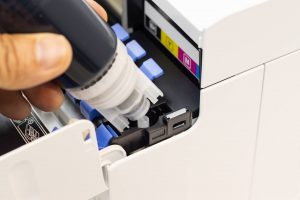
Ink cartridges vs. ink tanks, you’d be forgiven for thinking that they were different names for the same thing. But they aren’t – and when it comes time to choose the printer that is best suited to your needs, it’s important to know the difference. Continue reading Ink Tank vs. Ink Cartridges – Which is Better?
Tips on Refilling HP Toner Cartridges

The common inquiry we often come across is whether HP toner cartridges can be refilled. To clarify, yes, they can! HP LaserJet toner cartridges are thoughtfully designed to enable refilling, providing them with an extended functional lifespan Continue reading Tips on Refilling HP Toner Cartridges
How to Fix A Leaking Printer Cartridge

It’s the bane of every office worker’s existence – a leaking printer cartridge, a stained piece of clothing, a ruined day. Continue reading How to Fix A Leaking Printer Cartridge
How to Override an HP Printer Cartridge Error

HP is a company that makes printers (and all kinds of gear) that sets a standard. It’s a high standard, and you don’t tend to get through an experience with an HP printer without being impressed at some level. But one thing that catches a few people off guard is the often-frustrating experience of having to deal with a ‘cartridge error’.
Continue reading How to Override an HP Printer Cartridge Error
Laser Printer vs Inkjet Printer

Which is better an inkjet or laser printer? Choosing between an inkjet and laser printer can be a daunting task. Both offer unique advantages, making it difficult to determine which one best suits your needs. In this comprehensive guide, we’ll delve into the key differences between inkjet and laser printer, helping you make an informed decision based on cost, performance, maintenance, and your specific printing requirements.
What is an Inkjet Printer?
Inkjet printers utilise tiny nozzles to spray droplets of ink onto paper. A piezoelectric crystal or thermal bubble technology is used to force the ink out of the nozzles, creating the desired image.
Typical Uses:
- High-quality photo printing: Inkjet printers are renowned for their ability to produce vibrant and detailed colour prints, making them ideal for photographers, artists, and those who value photo quality.
- Occasional document printing: While inkjet printers can handle basic document printing, they are generally more suitable for tasks that require high-quality visuals or colour output.
Key Advantages of Inkjet Printers:
- Lower initial cost: Inkjet printers typically have a lower upfront price compared to laser printers.
- Superior colour photo quality: They excel in producing vibrant and accurate colour prints, making them a preferred choice for photo enthusiasts.
What is a laser jet printer?
Laser printers, on the other hand, print onto paper by melting toner powder. Laser printers use a laser beam to create an image on a photoreceptor drum. The laser beam charges the drum, making it receptive to toner particles. Toner is then applied to the drum and transferred to the paper, where it is fused with heat to create the final image. This process explains how a laser printer works in delivering sharp and efficient results for both text and graphics.
Typical Uses
- High-volume text document printing: Laser printers are designed to handle large volumes of text-based documents efficiently. They are commonly found in offices, schools, and businesses that need to print large quantities of documents.
Key Advantages of Laser Printers
- Faster printing speed: Laser printers offer significantly faster print speeds compared to inkjet printers, making them ideal for high-volume printing tasks.
- Lower cost per page: In the long run, the best laser printers can be more cost-effective due to their lower cost per page, especially for text-heavy documents.
Factors to Consider
Cost Comparison
Inkjet printers generally have a lower upfront cost, making them more accessible for individuals and small businesses. They can have higher per-page costs, especially for low-volume printing. However, ink tank printers offer a more affordable solution. Inkjet printers use ink cartridges, which can vary in price depending on the brand and ink type.
Ink tank printers offer a more cost-effective solution for inkjet printing by providing large ink reservoirs that can reduce the need for frequent cartridge replacements.
For laser printers, they typically have a higher initial purchase price, but can be more cost-effective in the long run, especially for high-volume printing. They have lower per-page costs, making them more economical for high-volume printing. Laser printers use toner cartridges, which can be more expensive than ink cartridges but often offer higher page yields. If you own an HP model, you may also find this guide on replacing the toner cartridge on HP LaserJet printers helpful.
When comparing inkjet vs laser printer, it’s clear that inkjet printers can tempt you with their lower prices. However, there are some downsides, such as their shorter life and higher cost per page. While laser printers are a bit more pricey, they offer a lower cost per page than the inkjet printer.
Performance
In terms of performance, laser printers are highly efficient. They provide quick printing and are designed to accommodate high volumes of printing, from 15-100 ppm as compared to inkjet printers, which average around 16 ppm. Laser printers do require a bit of warming up before printing, unlike inkjet printers, which can start working instantly.
Inkjet printers offer superior colour photo quality, making them ideal for creative projects. However, they may have slower print speeds and higher per-page costs, especially for low-volume printing. The best laser printers, on the other hand, excel in high-volume text printing and offer faster print speeds and lower long-term costs. While their initial purchase price may be higher, laser printers can be more cost-effective in the long run. Ultimately, the best choice between inkjet and laser printers depends on your specific needs and budget.
Page yield
When comparing laser vs inkjet printers, the difference in page yield becomes a key factor for businesses and individuals who print frequently.
Due to the laserjet’s ability to print large volumes, you will be able to deliver a lot more pages than you would with the ink consumables. You can expect to print from 2000-10000 with a toner cartridge, and 135-1000 pages with an ink cartridge.
Inkjet printers typically have lower page yields compared to laser printers, especially for black and white printing. Standard ink cartridges may yield around 300-400 pages for black and white and 150-250 pages for colour. However, ink tank printers can offer significantly higher page yields due to their larger ink reservoirs. Laser printers generally have much higher page yields, with standard toner cartridges often yielding 2,000-3,000 pages for black and white and 1,000-1,500 pages for colour.
User friendliness
Inkjet printers are generally considered user-friendly and easy to set up. They often have intuitive interfaces and are suitable for home users. Many modern inkjet printers also offer wireless connectivity, allowing for easy printing from smartphones and tablets.
Laser printers can be slightly more complex to set up and operate, especially for advanced features. However, they often have intuitive control panels and software that can simplify the printing process. Modern laser printers may also offer features like automatic duplex printing, wireless connectivity, and cloud integration.
Maintenance
Inkjet printers require more frequent maintenance compared to laser printers. They are prone to ink drying up, especially if not used regularly, which can lead to clogged printheads and poor print quality. Regular printhead cleaning is essential to prevent clogging and maintain optimal performance. Additionally, inkjet printers may require occasional nozzle cleaning or alignment.
There will also be a chance of cartridges drying out, so it’s best to run your printer regularly and store spare cartridges in a cool, dry place. If you have experienced it, see our full guide on fixing ink cartridges that have dried out.
Laser printers, on the other hand, generally have lower maintenance requirements. The primary task is replacing toner cartridges when they become depleted. While the photoreceptor drum may need to be replaced periodically, this is typically less frequent than toner cartridge replacement.
Printer life
In terms of longevity, laserjet printers are highly regarded for their durability. They will serve you for at least 5 years before they break down. Inkjet printers are generally known to have a shorter life of around 3 years minimum.
Inkjet printers generally have a shorter lifespan compared to laser printers. Factors such as ink drying up, printhead wear, and the overall quality of the printer can influence its longevity. With regular use and proper maintenance, inkjet printers can typically last anywhere from 2-5 years.
Laser printers tend to have a longer lifespan, often lasting 5-7 years or more with proper care. They are less susceptible to issues like ink drying up and printhead clogging. Regular maintenance, such as replacing toner cartridges and cleaning the photoreceptor drum, can help extend the lifespan of a laser printer.
Connectivity and Smart Features
Modern printers are designed with more than just printing in mind. When comparing an inkjet vs laser printer, it’s worth looking at the connectivity and smart features that can make daily use easier.
Wireless printing — Many models now include Wi-Fi, allowing multiple devices in a home or office to connect without cables. This is especially useful for shared workspaces.
Bluetooth and NFC — Some printers support direct connections from smartphones or tablets, making quick jobs faster and more convenient.
Cloud integration — Features like Google Cloud Print or Apple Air Print let you send documents straight from cloud storage to your printer.
Touchscreen interfaces — Newer models often come with touchscreens that simplify navigation, settings and maintenance alerts.
Whether you choose an inkjet or laser printer, these smart features add value and improve usability, helping you get more from your device beyond basic printing.
Environmental Impact
Both inkjet and laser printers have environmental implications, primarily related to the production, use, and disposal of consumables. Inkjet printers can contribute to environmental pollution through the production and disposal of ink cartridges, as well as ink drying up in the printhead if not used regularly. Laser printers, on the other hand, have environmental impacts associated with the production and disposal of toner cartridges and the release of toner dust into the air during printing.
To reduce their environmental impact, both inkjet and laser printers have become more energy efficient and some manufacturers are using recycled materials in their printers and consumables. Refillable ink and toner cartridges can also help reduce waste and costs.
When choosing between inkjet and laser printers, it’s important to consider the overall environmental impact, including factors such as the printer’s energy efficiency, the recyclability of consumables, and the availability of refill programs.
Choosing a Printer
Both inkjet and laser printers offer unique advantages and disadvantages, making it essential to consider your specific needs before making a purchase. Inkjet printers are generally more affordable upfront and excel in colour photo quality, making them suitable for occasional home use and creative projects. However, they may have higher per-page costs and require more frequent maintenance. Laser printers, on the other hand, are ideal for high-volume text printing, offering faster print speeds and lower long-term costs. While their initial purchase price may be higher, laser printers can be more cost-effective in the long run.
When considering which is better an inkjet or a laser printer, consider factors such as your printing volume, the type of content you’ll be printing, and your budget. Modern printers offer features like wireless connectivity and touchscreen interfaces, making them more user-friendly than ever before. Ultimately, the best printer for you depends on your specific needs and preferences.
Shop Toner City for your printer consumables
For all your printer consumable needs, visit Toner City. We offer a wide range of high-quality ink cartridges and toner cartridges for printer brands like HP, Epson, Dell, Canon to keep your printer running smoothly. Visit our website to explore our products and make a purchase. Toner City is Australia’s go-to destination for ink and toner cartridges, whatever you need, you can find it at the lowest prices. If you have any questions about our products, get in touch with us for more information.
Can ink cartridges dry out? Here’s how to fix them

Let’s cut to the chase: when it comes to ink cartridges, we’ve got good news and bad news. The bad news is that yes, ink cartridges can dry out. The good news, however, is that when this happens, you can easily fix dry ink cartridge issues with a few simple steps.
Before attempting to fix dry ink cartridges, it’s important that we understand what might cause ink cartridges to dry. There are a few ways this could happen:
Less usage
One of the easiest answers to how do you keep ink cartridges from drying out is to run your printer regularly. If you use your printer infrequently, then chances are the ink cartridges will dry out rather quickly and end up getting clogged. This can easily be avoided by using the printer more frequently and performing regular clean-ups to ensure everything is in order.
Expired cartridges
Every ink cartridge comes with an expiration date. When this expiration date arrives, the cartridge will become unusable. We recommend always keeping a note of your ink cartridge expiration dates and requesting an order at least a week in advance. For more details on dealing with cartridge errors, you can also read our guide on how to bypass incompatible HP ink cartridges.
Incorrect storage conditions
You should always ensure that your cartridges are stored safely in a cool, dry place away from direct sunlight. This also means the cartridges need to be kept at a stable temperature. If not, it can affect its performance and result in a dry ink cartridge.
Manually refilling cartridges
The refilling process needs to be carried out properly as it could potentially let air into the cartridge. This would only dry up the ink and clog the nozzle heads. This is why you should always go for reliable manufacturers such as Brother, Canon or Lanier. For guidance, check out our article on how to refill Sawgrass ink cartridges.
How to fix dried ink cartridges
1. Run the printhead cleaning option in your printer settings
You can find this in your computer’s printer settings. You’ll typically find this titled under ‘maintenance’, ‘troubleshooting’ or something similar. If you’re not sure about the process, you can refer to the user manual for instructions. Once you run the settings, the printer will attempt to print a test page. This will determine if any nozzles are blocked and if any of them need cleaning.
Afterwards, run a ‘head clean’ 3 or 4 times. It should be noted that this may fix only some cartridges.
2. Soak the cartridges
Open your printer and take out the dry ink cartridges. Place them in a medium-sized bowl. Fill it with lukewarm water and soak the cartridges. Ensure that the nozzles are completely covered.
3. Clean the cartridges
Using a cleaning cloth or a cotton bud, wipe through the nozzle entrance. If you don’t see ink starting to flow into the water, soak the cartridges for a few minutes and try again.
4. Fix them back to your printer or go for a replacement
If the above process fixed your cartridges, you can place them back in the printer. Remember to dry the cartridges to remove the water before fixing them back in place.
If you’re still having dry ink cartridge issues and asking yourself can you fix dried out ink cartridges beyond repair, then perhaps it’s time for you to go for a new ink cartridge. Here at Toner City, we source some of the best brands in the market with prominent names like Dell, HP, Lexmark, Epson, Ricoh and more.
You may also find our guide on how to reset Lexmark ink cartridges helpful if your printer still doesn’t recognise a replacement.
How to keep printer ink cartridges from drying out
Many users ask, can ink cartridges dry out if they’re not used often? Unfortunately, the answer is yes. A dry cartridge can lead to faded prints, streaks and clogged nozzles, but there are simple steps you can take to avoid it.
The most effective tip for how to keep printer ink cartridges from drying out is to use your printer regularly. Printing a test page once a week helps keep ink flowing and prevents blockages.
Always store spare cartridges in their original packaging, upright and in a cool, dry place away from direct sunlight.
Leaving your printer powered on also helps, as many models run small maintenance cycles to keep cartridges in good condition.
Talk to the experts
Toner City has been proudly serving the Australian market for over a decade. We specialise in ink cartridges, toner cartridges and labels.
Still not sure how to fix your dry ink cartridge problem? Reach out to our team and we’ll be happy to assist you with your queries. Call us on 1300 330 242 or reach us via our contact page.
Best Brother Label Printers
A Brother label printer is one of the most useful tools for homes, offices and businesses. From organising shelves and files to handling shipping labels, Brother has built a reputation for reliable and practical printers. Their models are designed to suit different needs, from small office setups to large-scale operations.
Why do many choose Brother label printers
Here are some of the key reasons why many people turn to Brother label printers:
Ease of use — Brother label printers are known for their easy setup and user-friendly design. With connectivity options such as USB, Wi-Fi or Bluetooth, they make it simple for anyone to start printing without technical barriers.
Versatility — The Brother range includes compact models for personal organisation, mid-range printers for small businesses and heavy-duty machines for high-volume logistics. This variety makes it easy to find a printer that suits your specific needs.
Print quality — Each Brother label printer is designed to deliver crisp, clear labels that are easy to read and built to last. This ensures that your files, parcels or products are always labelled professionally.
Efficiency — Fast print speeds mean Brother printers can handle everyday demands with ease. From quick address labels to bulk shipping runs, they keep productivity high without slowing down.
Cost savings — When paired with compatible cartridges, Brother label printers become even more cost-effective. Compatible cartridge options provide an affordable way to maintain print quality while keeping ongoing expenses under control.
Sustainable disposal — Empty cartridges can be easily discarded or recycled, making it simpler to manage waste and reduce your environmental impact.
Explore different Brother label printer models
Brother offers a wide range of label printers. Here are some of the most popular models worth considering:
Brother QL-700
The Brother QL-700 is designed for small offices and home use. It connects through USB and prints up to 93 standard address labels per minute, making it fast and efficient. Its plug-and-play design means you can start printing right away without complicated setup.
Brother QL-800
Perfect for creating standout labels, the Brother QL-800 prints in both black and red. This makes it ideal for warning labels, promotions or anything that needs extra visibility. It also offers fast print speeds and crisp results, keeping productivity high.
Brother P-touch PT-D610BT
The PT-D610BT is a versatile option for home or office organisation. It connects via Bluetooth, has a full QWERTY keyboard and allows you to design labels directly from your computer or smartphone. Compact and portable, it’s handy for keeping storage, files and equipment clearly labelled.
Brother QL-1100
For businesses that handle shipping and logistics, the QL-1100 offers wide-format labels that are perfect for parcels. It supports popular shipping platforms and can handle high-volume printing with speed and accuracy. It’s built for reliability in warehouses and busy offices.
Brother P-touch Cube Plus (PT-P710BT)
This compact model is designed for flexible labelling on the go. The Cube Plus connects to mobile devices and lets you create customised labels through an app. It’s stylish, lightweight and ideal for personal organisation or small business needs.
Tips for choosing the right Brother label printer
Finding the right Brother label printer depends on a few key factors that help match the model to your printing needs. Use these points as a guide:
Usage needs
Your choice should reflect how often you plan to use the printer. For occasional printing at home, a compact model such as the Brother QL-700 is more than enough. If you need something for everyday business tasks, the Brother QL-800 or PT-D610BT are reliable options that balance speed and versatility. For heavy shipping and logistics, the Brother QL-1100 stands out with its ability to handle wide-format labels at high volumes.
Connectivity options
Connectivity can make a big difference to convenience. USB models are dependable and straightforward, ideal if you only need to connect to one computer. For more flexibility, Wi-Fi or Bluetooth models allow multiple users to print wirelessly and make it easier to work across different devices, including smartphones and tablets.
Label size requirements
The type of labels you need will also influence your choice. Wide-format printers are designed for shipping labels and larger jobs, making them essential for warehouses or online sellers. On the other hand, smaller models are perfect for file organisation, folders and general office labelling, where compact and clear labels are all that’s required.
For more advice on choosing the printer, you can also read our Canon buying guide.
Get compatible cartridges for the best Brother label printer at Tonercity
The right Brother label printer can make organisation, office work and even shipping tasks easier and more efficient. To keep your printer running at its best, you need cartridges that deliver quality without driving up costs.
At Tonercity, we specialise in compatible toner cartridges for brands like Brother, Canon, HP, Epson and more that deliver the same dependable performance as genuine options at a fraction of the price. Our cartridges are designed to work seamlessly with most Brother printers, helping you save money without compromising on results. Plus, you can save even more by choosing bulk wholesale toners.
Shop Brother label printers compatible cartridges at Tonercity today and keep your printing reliable, affordable and hassle-free.
How to Empty your Waste Toner Cartridge – 4 Easy Steps
While most people think of liquid ink when they think of printers, a good percentage of modern office and home printers actually use something called toner. Toner is a fine powder that laser printers use in the place of traditional printer ink. Continue reading How to Empty your Waste Toner Cartridge – 4 Easy Steps
How to Reset the Ink Levels on an HP Cartridge

Continue reading How to Reset the Ink Levels on an HP Cartridge
How To Choose The Right Printer Ink For Your Home Office
Choosing the right printer ink can make a big difference in how smoothly your home office runs. From printing invoices to school worksheets, having the correct cartridge means you’ll avoid poor print quality, cartridge errors or frequent replacements. But with so many options available, it can be hard to know where to start.
In this guide, we’ll walk you through what to look for when choosing printer inks for your home office setup. Whether you print daily or just a few times a month, making the right choice can save you money and hassle.
Tips for choosing the best printer ink for your home office
1. Check your printer model before buying
Start by checking the make and model of the printer you’re using. It might sound basic, but using the wrong cartridge can lead to compatibility issues or even damage your printer. You can usually find the model on the front panel of the printer or in the user manual. Some printers also display this info on the settings screen.
Once you know your model, match it with the correct ink or toner type based on your printer’s specific needs.
2. Explore brand-specific guides
Different brands and models come with their own quirks, so it’s worth doing a bit of reading before buying. For example, Canon printers often have unique cartridge sizes and installation methods. Checking the right ink cartridge guide can help you avoid costly mistakes and get the most from your ink.
3. Know your print volume and ink usage
If you’re running a busy home office with high printing needs, it may be worth choosing high-yield or XL cartridges, which print more pages and don’t need replacing as often. These are ideal for frequent tasks like reports, invoices or bulk document printing.
On the other hand, if you only print now and then, like the odd school form or label, standard cartridges might be enough. It’s all about matching your usage with the right cartridge type to avoid overspending or running out too soon.
4. Consider cost over time, not just the upfront price
When comparing printer inks, it’s important to look beyond the sticker price. A cheaper cartridge that runs out quickly may end up costing more in the long run. Instead, consider factors like page yield (how many pages a cartridge can print), cost per page and how often you’ll need to replace it.
Compatible cartridges are often much more affordable without compromising on quality. They’re made to work with your printer and can help you keep your running costs low. If you print regularly, buying in bulk can offer greater savings without reducing performance.
5. Compare ink types: dye-based vs pigment-based
Printer inks generally fall into two categories: dye-based and pigment-based.
- Dye-based ink is more common and affordable. It’s great for producing vibrant colours and works well for photos or images. However, it’s more prone to smudging and fading over time.
- Pigment-based ink is known for sharp text, faster drying and resistance to water or light. It’s ideal for business documents or anything that needs to last.
For most home office tasks, pigment-based ink is the better choice, especially if you regularly print text-heavy materials.
6. Think about sustainability and cartridge disposal
Choosing the right printer ink isn’t just about print quality or cost. It’s also an opportunity to reduce environmental impact. Some cartridges are easier to recycle than others, and choosing inks from brands that support recycling programs can make disposal more straightforward.
Instead of tossing empty cartridges into the bin, consider eco-friendly cartridge disposal options like recycling through local councils or office supply stores. You can also manage them at home through responsible storage, sorting and collection methods that support sustainable use over time.
Why the right ink makes a difference
Selecting the correct printer ink for your home office doesn’t just improve print quality. It also reduces interruptions and extends the life of your equipment. When the ink is a proper match for your printer, you’ll see fewer error messages, avoid clogging or streaking issues and get consistent, professional results every time you print.
It also means better value over time. The right ink offers optimal page yield, reduces waste from misprints and avoids the need for reprints. Whether you’re printing business reports or family documents, the right cartridge helps you stay efficient and avoid unnecessary costs.
Shop printer inks for your home office with TonerCity
Ready to find the right printer ink? At TonerCity, we make it simple to get exactly what your home office needs. We stock a wide range of both genuine and compatible cartridges, so you can choose what suits your budget and printing habits.
You can browse by brand to find what fits your printer, including Brother, Canon, Epson and HP. Explore our printer ink range or reach out if you need help finding a match for your printer model.